27 Mar 2013

IDM Error - Permission Denied. Please check your firewall settings


For Advanced Users: (Simple explaination)
Add an exception to IDM in AVG  Firewall
For step by step procedure follow the following steps

This post is about another IDM Error ..” Permission Denied. Please check your firewall settings and ensure that IDM has permits to access the Internet. Details: Cannot connect r17---maa03s08.c.youtube.com:80 ”.


I have seen this error first time and came to know the solution very easily. Because this IDM Error is coming since I removed my Avast Anty Virus and Installed AVG Internet Security 2013.

Solution:
To get rid of this error we have to simply turn off the AVG Anty Virus Firewall which is not good for your System Security.

That's why we add firewall exception for IDM software only.
To Add exception for IDM in AVG firewall Click on Firewall on the interface of AVG.
Go to Change option on Firewall Mode:
Go to Applications>>and click on Add to add Internet Download Manager Path.
Add path of the program (usually available in C: Program Files) using browse button. Name will appear automatically and you can leave Description as blank. Click on Create.

If the Application Access showing as Allow click OK.

Note: If you are not using some other instead of AVG You can try the same procedure to resolve the error.

Ad-Free Browsing with Add Blocker Plus


We can understand that every website needs advertising to survive. Some of them like Facebook provide clean ads, whereas some of the sites including YouTube are encouraging non standard porn advertisings & pop-ups.

If you frustrated of these annoying commercials, adds & pop-ups then it is time to installed Add Blocker Plus for Chrome and Firefox.

How Add Blocker Works? 

The hard work of this application is actually done by Gecko, the engine on which Firefox, Thunderbird and other applications are built. It allows "content Policies" a simple JavaScript (or C++) objects that gets whenever the browser needs to load something. It can then looks at the address that should be loaded and some other data and decides whether it should be allowed. There are a number of built-in content policies and any extension can register one. So all that Add Blocker has to do is to register its content policy. Other than that there is only application logic to decide which addresses to block and user interface code to allow configure of filters.

Benefits:
  • Completely Free & Secured Browsing
  • You can view any site without a single advertising or Popup.
  • Add Blocker Plus is much more advanced and it also prevents flash player advertisings such as video commercials on YouTube.
  • Compatible with download software like IDM
  • Applicable for every website and bloggers

Installing Add Blocker Plus to Chrome & Firefox:

For Chrome:

Installation is very simple as it is just an extension on our browsers.
Open to Add Blocker Plus for Chrome and click Add to Chrome.


That’s it Add Blocker Plus is added to your Chrome browser.

For Firefox: 

This is also much similar to chrome extension.
Open Mozilla Add-ons and click on Add to Firefox button. Click on Allow if Firefox asks for any confirmation. After a few seconds of download install the extension.


Your Firefox is also ready for Add Blocker extension use.

Note: Although the extension if completely free, in both of the cases you may promoted to contribute some funds for development. You can ignore if you don’t want to.

Feel the Difference:

Let me show you some of the websites before and after Add Blocker.

        Before Add Blocker                                             After Add Blocker


           Before Add Blocker                                              After Add Blocker


Request: Don't keep the this extension only with you, share with your friends and let them enjoy the add free browsing


1 Mar 2013

Change Blogger Logo


There is one disadvantage with blogs. They look cheap when compared to websites (you know.. Commercially).

To make a Blog look like a website, you have to change everything that a common blog consists.. Including Blogger Logo.

For god sake we can easily change Logo in blogger. To change the blogger logo, follow the following steps.

Go to http://www.blogger.com/ and your enter ID & Password to see Blogger Dashboard.

Now Go to Layout and choose Edit option on Favicon.


Then it is very simple, what all you need your logo image (It can be anything) with two simple rules.

     1. Image should be a Square Image. If your image is not square you can make a square image using Microsoft Picture Manager. 
    2. Image size should be less than 100 KB. If your Logo Image is above 100 KB use MS Paint to Reduce Image Size.

After having a Square Image within 100KB size you can upload in Favicon and Save.


Now save arrangements once and view you blog. No more Blogger Logo, which makes it more similar to a website.


20 Feb 2013

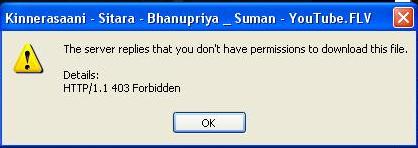
Alternate Solution for IDM Error HTTP:/1.1 403 Forbidden


Have you ever seen this error on IDM (Internet Download Manager)! Then you came to the right place.


Recently I’m working on a small project which requires a lot of Youtube videos. So I started downloading using IDM to make things easier and faster.

But this Error “The Server Replies that you don’t have permission to download this file.. Details HTTP:/1.1 403 Forbidden”.

I tried deleting cookies, using CC Cleaner, changing browser versions..etc. But couldn't find a perfect solution for this problem.

But I came up with a perfect ALTERNATE for this problem. Let’s see how it works.

Open http://www.keepvid.com/ and make sure you have installed Java in your system, if not Download Java and install.

Copy the YouTube URL and Past and click download.

If browser asks for Plug in Confirmation accept for all the popup.

Then you’ll receive different formats list to download.


Choose any one and click on it then you will received the Download permission option from browser close it and click on IDM Download confirmation bar.


Sorry to say once I found the exact solution I’ll let you know.. till than you have to use these alternate sources only..

Note: IDM 6.15 Build 5 is working without any errors. You can download and try.


7 Jan 2013

Use Multiple Yahoo Accounts Simultaneously...!!


After social network revolution by Facebook also… still Yahoo! Messenger remains a very popular instant messenger.

Yesterday I tried a simple trick to fool my close buddy by chating with him as a girl, some how he got a doubt that it was actually me that was teasing him and he told me to login to yahoo! (as I have 24hr internet). For a moment I thought I was caught and did the quick GooGle for a solution.

Can you believe it.. you can open more than single Yahoo messenger within the same PC! Let me share you the trick.


Just do the following steps

 Go to Start ----> Run . Type regedit then Enter.

Navigate to HKEY_CURRENT_USER >> Software >> Yahoo >> pager >>Test.

On the right pane , right-click and choose new Dword value.

Give a name as Plural.

Double click it and assign a decimal value of 1


Now close registry and start yahoo messenger and logn.. Not you can open another yahoo messenger and can login with another ID.


11 Dec 2012

Google for live cams


I have found one of the coolest search on Google.. It is Live Cams.

Yes you can see most of the unsecured security cams around the world like shopping centers, offices, streets & beaches..etc.

Here it how it works open google and past this : inurl:"axis-cgi/mjpg" and open any of the websites with IP addresses (just numbers).


One problem with this is u have to refresh inorder to get new images but if u use Mozilla Firefox therefore you need not to use refresh.

Findind Invisible user on Yahoo! Messenger


Many people prefer to stay offline while using Yahoo! Messenger -
mostly to avoid someone. There are many ways of finding people who are online but yet invisible.

First Method:
Web Sites
The following websites do the work for you for free….
Note: Visit at least two websites to confirm..

Second Method: Method Doodle Method
1. Double Click on the user whose status you want to check.
2. A message window will open.
3. Click IMVironment button, select See all IMVironments, select Yahoo! Tools or Interactive Fun, and click on Doodle.
4. The last step and the most important step. After loading the Doodle IMVironment, there will be two possibilities.
a) If the user is offline, the Doodle area will show “waiting for your friend to load Doodle” continuously. If the user is online (in invisible mode), after few seconds (it can take up to one minute, depending on connection speed), you will get a blank page. So the user is online!
There is a counter attack of this trick:
Go to Messenger>>Preferences>>Messages and now uncheck Enable IMVironments. Now this trick is nullified!

Third Method: Voice Chat
1. Double Click on the user whose status you want to check.
2. Click on “Voice” icon on the toolbar, or select “Contact” menu and select “Enable Voice Chat” .
3. The deciding part… there are 2 possible results:
a) If the user is offline, you will get this message: “Internal server error. Cannot obtain voice token to start voice chat.” If the user is invisible (actually online), you will see the Voice Toolbar.

Fourth Method: Conference Invitation
1. Right Click on the user whose status you want to check.
2. When the menu appears, select Invite to Conference.
3. A window will appear. See at the right pane, the username you selected will be there. Now, click Invite.
4. The deciding part… there are 2 possible results:
a) If the user is offline, you will get this message: “None of the users in the invite list are available to join the conference. Please try at a later time.”
If the user is invisible, you will get a window similar saying: “You are now logged into voice conference - 
"..


Internet Error Codes


When you have entered a site sometimes it shows site is unable with an error code. You can make out that the problem is by referring to these error codes.

Here's a quick rundown of the most common:

400 - Bad Request - You probably typed in a URL wrong, the server has no clue what you're looking for, or you aren't allowed to have access. Usually, it's a matter of the URL being typing in wrong. Maybe you mixed upper and lowercase letters or something.


401 - Unauthorized Request - you tried to get to something on the web server and you're not allowed to play with. In other words, you are not on the party list.


403 - Forbidden - You can't access the page. You may not have access (it may require a password), or it may be blocked from your domain.


404 - Not Found - The page you were trying to look at was not found on the server. This is probably the most common error you'll come across. What has probably happened is that the web page you were going to has been removed or re-named.


500 - Internal error - Usually caused by a CGI error. You fill out a form, but the script used to process it is not working properly.


503 - Service Unavailable - The server may be overloaded, down, or have other similar problems. Try later

There are so many other error codes. But the above are the most common ones.

HAPPY SURFING