27 Mar 2013

IDM Error - Permission Denied. Please check your firewall settings


For Advanced Users: (Simple explaination)
Add an exception to IDM in AVG  Firewall
For step by step procedure follow the following steps

This post is about another IDM Error ..” Permission Denied. Please check your firewall settings and ensure that IDM has permits to access the Internet. Details: Cannot connect r17---maa03s08.c.youtube.com:80 ”.


I have seen this error first time and came to know the solution very easily. Because this IDM Error is coming since I removed my Avast Anty Virus and Installed AVG Internet Security 2013.

Solution:
To get rid of this error we have to simply turn off the AVG Anty Virus Firewall which is not good for your System Security.

That's why we add firewall exception for IDM software only.
To Add exception for IDM in AVG firewall Click on Firewall on the interface of AVG.
Go to Change option on Firewall Mode:
Go to Applications>>and click on Add to add Internet Download Manager Path.
Add path of the program (usually available in C: Program Files) using browse button. Name will appear automatically and you can leave Description as blank. Click on Create.

If the Application Access showing as Allow click OK.

Note: If you are not using some other instead of AVG You can try the same procedure to resolve the error.
20 Feb 2013

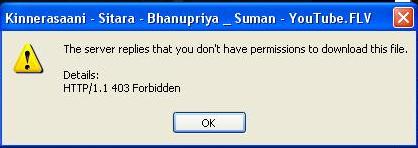
Alternate Solution for IDM Error HTTP:/1.1 403 Forbidden


Have you ever seen this error on IDM (Internet Download Manager)! Then you came to the right place.


Recently I’m working on a small project which requires a lot of Youtube videos. So I started downloading using IDM to make things easier and faster.

But this Error “The Server Replies that you don’t have permission to download this file.. Details HTTP:/1.1 403 Forbidden”.

I tried deleting cookies, using CC Cleaner, changing browser versions..etc. But couldn't find a perfect solution for this problem.

But I came up with a perfect ALTERNATE for this problem. Let’s see how it works.

Open http://www.keepvid.com/ and make sure you have installed Java in your system, if not Download Java and install.

Copy the YouTube URL and Past and click download.

If browser asks for Plug in Confirmation accept for all the popup.

Then you’ll receive different formats list to download.


Choose any one and click on it then you will received the Download permission option from browser close it and click on IDM Download confirmation bar.


Sorry to say once I found the exact solution I’ll let you know.. till than you have to use these alternate sources only..

Note: IDM 6.15 Build 5 is working without any errors. You can download and try.


16 Feb 2013

Nero - There is not enough space available to burn the image


I hope you do know how to copy CD to CD or DVD to DVD using Nero.

While copying CD or DVD, Nero will save the Data to your Hard Disc as an Image File, which will be auto deleted after process is completed.

If the location of the Image file doesn't have sufficient space, then Nero won’t continue copying.
In this post I’ll show you how to avoid such scenario.


I have inserted my disc which needed to be copied and using Nero Express ‘Copy Entire DVD’ option I’m copying the disc.


I choose the speed and number of copies as per my requirement and did not consider  about the location of the Image File.


Boom.. There is not enough space available to burn the image. This error came because there is no sufficient space in that location. And the disc will pop out.


To avoid such problem, start the copying the Disc again. This time we will choose the Image Location.

Click on the Image File Location and Choose My Computer in Detailed view (Detailed view helps to find our available space easily).  Choose the Drive with maximum space availability.


In the above snap shot I choose ‘C’ Drive as it is having maximum free space. Now you can copy your disc without any problem.

25 Jan 2013

Hide Internet Download Manager 'Download Progress Bar'


Internet Download Manager (IDM) is well known to Netizens who like to download videos and other stuff faster.

IDM allows many more features with simple interface. There is a small annoying problem I face from IDM is its download status bar. As the status itself is available within the main interface.

To disable the Status Bar do the following.,

Open IDM >> Downloads >> Options


In the options go to >> Downloads >> Customize download progress bad >> click Edit.


Now you can see the options you required choose the one you like and apply (Choose Do not show to disable).